The third skill in my free series is for audio. Give it a clip — a podcast snippet, a voiceover, a bit of music — and it turns it into a video with an animated waveform and a progress bar, so it actually plays and stops the scroll on LinkedIn, Instagram, and TikTok.
Audio doesn’t play on a feed
Audio is some of the best content people make, and it’s the hardest to share. Social feeds are built for video. A raw audio file has nowhere to live on most platforms, and even where it does, there’s nothing moving on screen to make someone stop scrolling. An audiogram fixes that: it wraps the audio in a simple, moving visual so the platform treats it as video and a viewer has a reason to pause.
You’ve seen these — a waveform bouncing along to a podcast quote, a bar creeping across the bottom to show how much is left. They work, and they’re tedious to make by hand. This skill makes one in a single command.
What the skill does
Point it at an audio file and it renders a clean, square audiogram: a glowing waveform that moves with the sound, on a dark background, with a progress bar along the bottom. Here’s a frame from one:
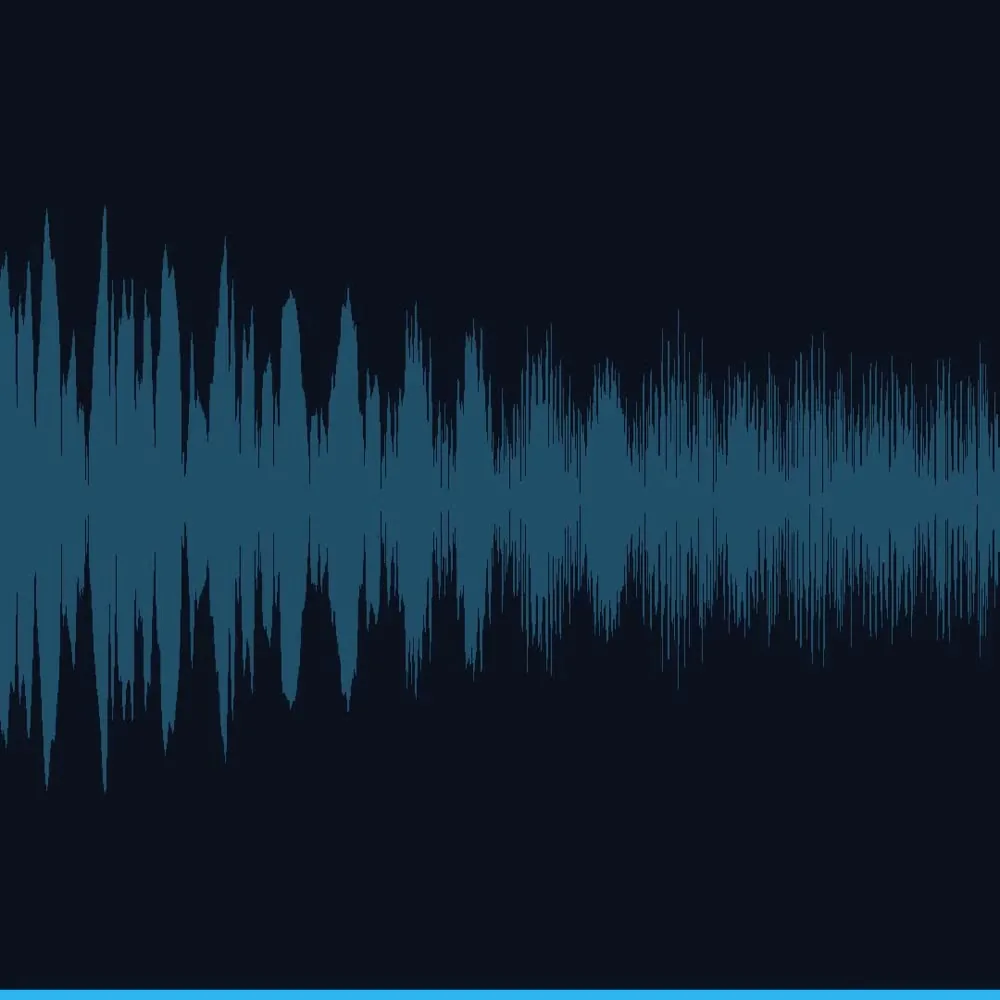
A frame from a generated audiogram — the waveform moves with the audio and the bar tracks progress.
Any size, any color
Different platforms want different shapes, so the size and the accent color are just options. Square works everywhere; vertical is made for Reels and TikTok. Same clip, two formats:
The same audio as a square (left) and a vertical clip (right), with the accent color changed by one option.
How to use it
The simplest version needs nothing but the file:
python3 audiogram.py --in clip.mp3 --out audiogram.mp4
Go vertical and change the color:
python3 audiogram.py --in vo.wav --res 1080x1920 --color "#f97316"
You can also drop in an image as the background, and — if your version of ffmpeg supports on-screen text — add a title across the top. If it doesn’t, the skill just tells you and renders the audiogram without the title instead of failing. The only hard requirement is ffmpeg.
Getting the skill — and why it’s free
That’s three skills in the series now: photos into a cinematic video, a one-command color grade, and this audiogram. Each one is a single small script plus a short instruction file, and each does one job well.
I’m giving them away because they’re easy to share and genuinely handy, and because running a skill is the fastest way to understand what Claude can do for you. If you’d like this one, reach out or follow the series on LinkedIn.